What is Assistive Technology?
Assistive Technology is equipment or technology which can help people with disabilities. This page hopes to point to tools that might be useful for our learners. Some of these tools might be helpful even if you do not have a disability.
AT Hive
The first place to go is AHEAD's AT Hive, as they point out a range of technologies that may be useful. They also have a quiz on finding your assistive technology, which can be useful if not knowing where to start.
Accessibility Features for eBooks in the Library
When accessing eBooks through our library, you will be directed to an external site through which to read these materials. We host eBooks on two platforms, ProQuest and VLE Books, both which have different accessibility tools which are described below.

Profile Settings
In your account profile, accessible from the menu top right of any eBook Central page, you can change a couple of settings to make ebooks more accessible.
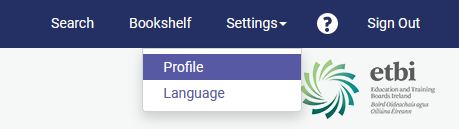
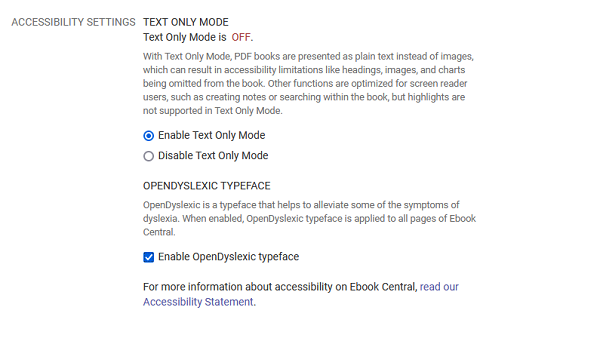
In your profile, you can select Text Only Mode, to have PDFs presented as plain text only, with no images, charts or other non-textual elements. You can only change the font to Open Dyslexic, a font that might make text easier to read for dyslexics. To activate either of these, go to your account profile page, scroll down to accessibility settings and tick Enable Text Only Mode and Enable Open DyslexicTypeface
Accessibility Standards and Features
The Ebook Central interface and ebook readers are designed to be accessible, giving users the ability to manage the following aspects of the site:
Colours, Contrasts and Fonts
ProQuest uses colours that meet minimum contrast specifications. Colour schemes can be changed in the browser settings. Browser extensions can be used to change the colour and contrast settings, including Midnight Lizard which is available for Chrome, Firefox, and Microsoft Edge.
Users can change the website typeface to OpenDyslexic in the Profile settings.
Magnification
Users can zoom in up to 300% without text spilling off screen using inbuilt browser features (e.g., CTRL +/- for PCs and Command +/- for Macs). Browser extensions are also available, such as Zoom Page WE for Firefox or Custom Page Zoom for Chrome.
Keyboard navigation
eBook Central can be navigated using only the keyboard. The tab, enter, and arrow keys can:
- Navigate website menus
- Perform basic and advanced searches
- Navigate search results
- Read online including book navigation
- Download ebooks
Screen Readers
eBook Central tests using the latest version of screen reader and browser combinations as follows:
- Desktop:
- Chrome or Microsoft Edge + JAWS
- Firefox + NVDA
- Safari + Voiceover
- Apple Mobile: Safari + Voiceover
- Android Mobile: Chrome + Talkback
Text to Speech
eBook Central doesn't have its own text-to-speech tool. However, text-to-speech is:
built into the Microsoft Edge browser
available as browser plug-ins for Chrome, Firefox and Opera.
built into most digital devices such as PCs, Macs, Tablets and Phones.
Non-Accessible Content
eBooks on the platform come from a variety of sources which may have different accessibility standards. Non-accessible content may include the following:
- Some ebooks have images without accessible descriptions and cannot be read by a screen reader.
- Headings and labels within ebook files are not always provided by the publisher, making it difficult to navigate with assisted technology.
- There may be issues with missing skip-link navigation issues on some ebooks.

Colours, Contrasts and Fonts
There are a range of accessibility options available to users which make searching and navigating the platform easier.
To access these options, select Edit Accessibility Settings on the left side of the screen. This feature enables users to set their own preferences for the platform.
Options include:
- Large Font
- High Contrast
- Highlight links in yellow
- Underline Links
- Greyscale Colour mode
- Dyslexic friendly font
- Prevent pop-up auto close
The options are applied permanently or until users make a change.
When reading via the platform, users can change the background colour to suit their requirements. Select 'Read Online' and access the colour palate in the top right-hand corner of the screen. This will open a pop-up panel which allows users to select a reading background from one of seven different dyslexia-friendly colours.
To amend contrast in the reader, users will need a browser plugin such as 'High Contrast' on Chrome or Microsoft Edge.
Browser extensions can also be used to change the colour and contrast settings, including Midnight Lizard which is available for Chrome, Firefox, and Microsoft Edge.
Magnification
VLeBooks Windows App supports text resizing to 200%.
VLeBooks Windows App supports zoom reflow via the browser controls resizing to 400% (Control+ +/-).
Browser extensions are also available, such as Zoom Page WE for Firefox or Custom Page Zoom for Chrome.
Keyboard navigation
VLE Books can be navigated using only the keyboard. The Control, Shift, and other keys can be used to:
- Navigate website menus
- Perform basic and advanced searches
- Navigate search results
- Read online including book navigation
Keyboard Shortcuts can be found on VLE Book's Accessibility Guidance webpage.
Screen Readers
eBooks downloaded to eReader software such as Adobe Digital Editions can be read by most screen reader software such as Read&Write.
Common software tools and their compatibility are as follows:
Read&Write
This software has Optical Character Recognition (OCR) capability which enables the eBook to be read via the platform or via download through Adobe Digital Editions (ADE).
Adobe Digital Editions Download Page
TalkBack (Android)
TalkBack is available for EPUB. TalkBack is not compatible with PDF eBooks.
Apple VoiceOver (iOS & iPadOS)
Apple VoiceOver is available for EPUB. VoiceOver is not compatible with PDF eBooks.
JAWS & NVDA
The VLeBooks App is not compatible with JAWS & NVDA.
Where an Adobe Digital Editions (ADE) download is selected and used, we acknowledge that ADE contains well-documented accessibility limitations. Because these barriers exist entirely within the third-party client, they fall outside of our direct operational control. This applies to whether ADE is used for PDF or EPUB.
AbilityNet has advice on making your device easier to use if you have a disability.
AbilityNet Free Tech Support and Information
Text to Speech
Our reader has inbuilt text-to-speech, available through 'ReadAloud' which can be used from both desktop and mobile views to read both EPUB and PDF eBooks. The ReadAloud feature enables the user more freedom to roam desktops or browsing devices where traditional assistive software would have been required. ReadAloud is a core feature built into the online platform allowing for wider audience access to audible facilities where assistive software may not have been possible or practical. Depending on the eBook and platform used, speed, pitch and voice selection may vary or not be supported.
Windows (Tested: VLeBooks App, Google Chrome Browser, Microsoft Edge)
ReadAloud is compatible with Windows App
Playback Controls: Start, Stop, Resume, Speed, Pitch, Voice Selection
MacOS (Tested Safari)
ReadAloud is compatible with the MacOS app
Playback Controls: Start, Stop
Android
ReadAloud is compatible with Android
Playback Controls: Start, Stop, Resume
iOS/iPad OS
ReadAloud is compatible with iOS/iPadOS
Playback Controls: Start, Stop, Resume
Alternative options for the web reader. Note, these plugins are compatible with EPUB only.
